For most customers, installing an ActivePDF product license is a straightforward process. You can either provide the license during product installation or open the ActivePDF License Manager and add the license afterward. If the license is valid, the product is licensed and ready to use.
An exception occurs when a license has a limited number of activations and must contact the ActivePDF licensing server to verify that activations are still available. Normally, his process is handled automatically if the machine has internet acces. If activations remain, the license is installed successfully; otherwise, the system reports that no activations are available.
Problems can arise when the machine does not have internet access and cannot connect to the ActivePDF licensing server. In these situations, manual activation is required. The following guide will walk you through the manual activation process and explain how to contact our support team if you need additional assistance.
- Product installation will create a short cut on the desktop for the ActivePDF License Manager, or if it is deleted it can be found in C:\Program Files (x86)\ActivePDF License Manager.
Manual Activation
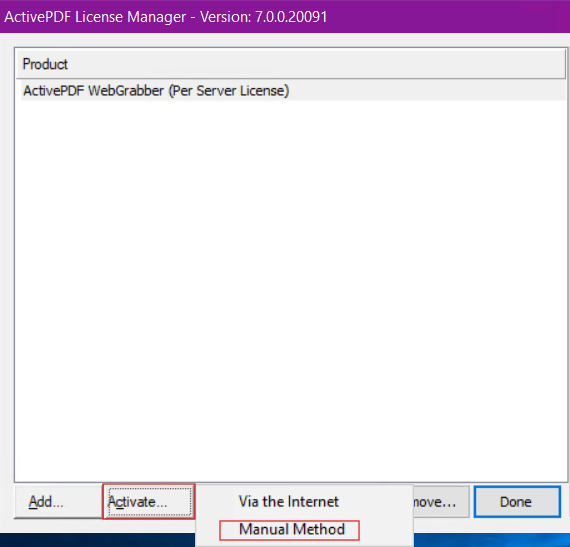
Open the ActivePDF License Manger. If your license was added during product install it will be displayed as "Not yet activated". In this case, select the license and click on "Activate" then "Manual Method".
Installing Your License
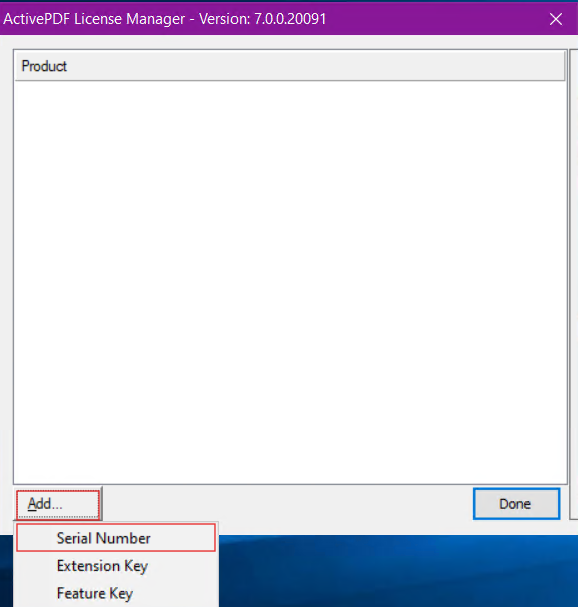
If your license is not already installed, you will need to add it. In the license manager, select the "Add..." and then "Serial Number" buttons.
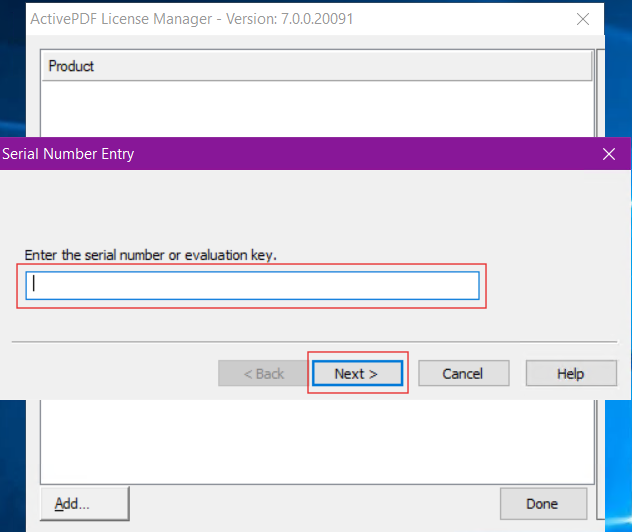
Enter your product license in the dialog.
This will add your license and then attempt to connect to the ActivePDF license server to activate it, which will fail if your machine does not have internet access.
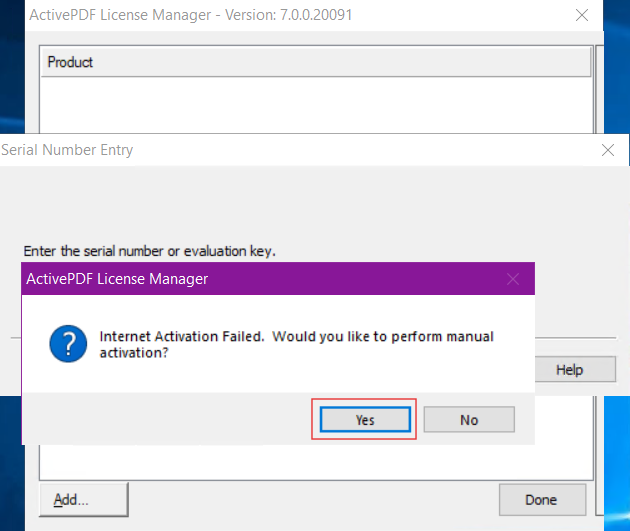
At this point, you need to perform a manual activation. Select "Yes" here, which will then display a manual activation dialog with options to activate your license.
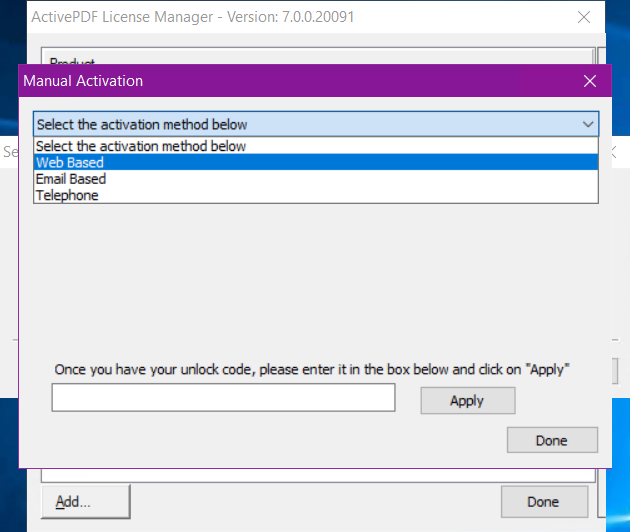
You have three options to activate your license; Web Based, Email Based, and Telephone.
Web Based
This is the recommended option and selecting it will display a URL where you can access the ActivePDF License Center, allowing you to generate a unlock code for your machine without contacting support.
- ActivePDF Licensing Center: https://licensing.activepdf.com/
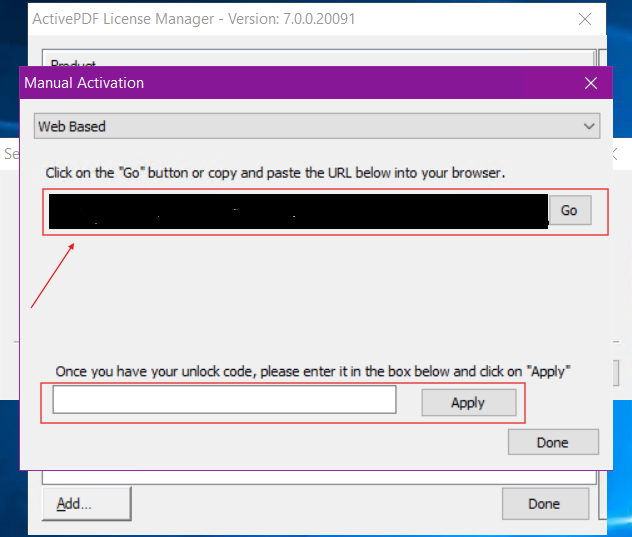
On systems with an internet connection, you can select the go button, which will open the license center in your browser with your license and application code. It will display an unlock code and the number of activations remaining for your license.
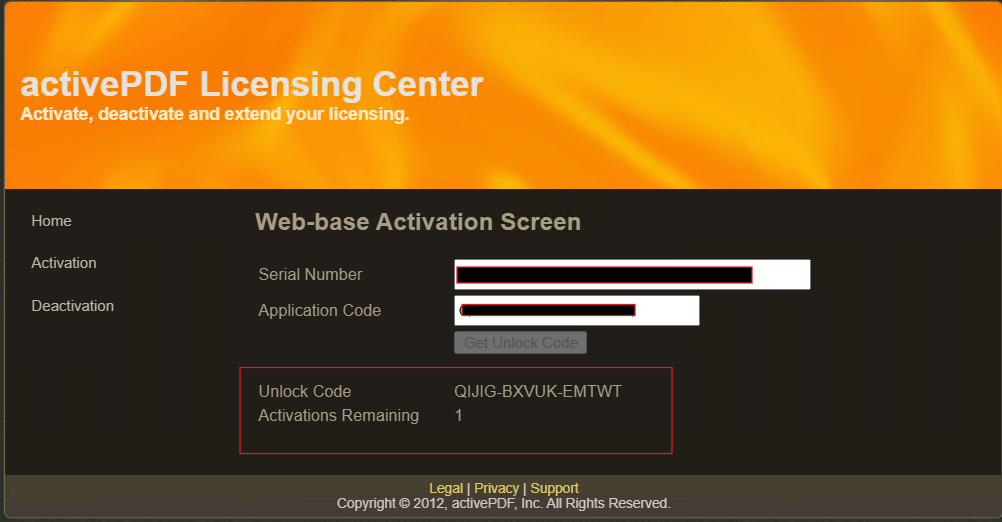
If your license has available activations, an unlock code will be generated as shown here. Copy the unlock code and paste it in the license manager window for an unlock code and select "Apply". This will activate your license on the machine.
- If your machine does not have internet access, copy the URL generated and load it in a browser on a machine with internet access to generate an unlock code.
Email Based
If your server does have internet access and an email provider set up, this option will email our support team with your license and application code so we can send you an unlock code.
Telephone Based
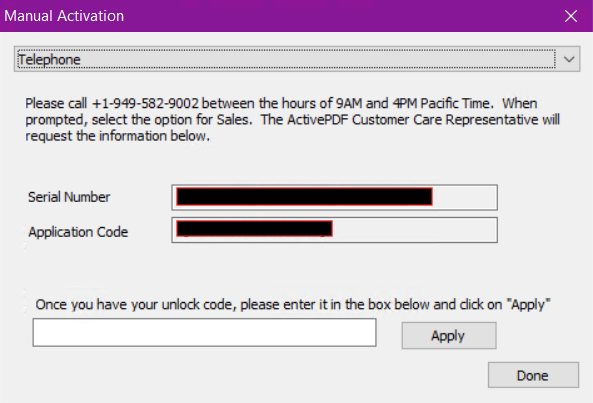
You can also select "Telephone", which will provide you with a support number to call to obtain an unlock code.