
Once you have obtained your ActivePDF product license, the next step is to install and activate it on your server. The activation process varies based on your license type and whether the server has internet access.
Product Installation
When you run the product installer, it checks for an existing valid license key. If a valid license is found, you will be prompted to either continue using the installed license or add a new one. If the existing license does not support the product version being installed, a notification will be displayed. If no valid license is found, you will be prompted to enter a license key.
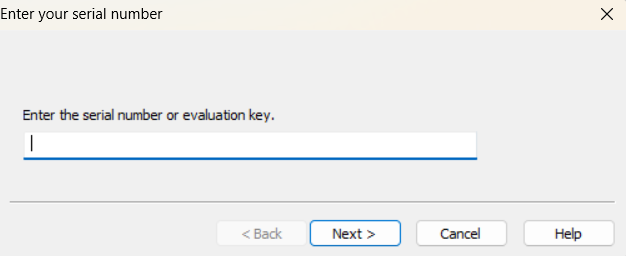
- Non-activating License
- Most licenses fall into this category and do not require a call back to the ActivePDF license server for activation. They can simply be added when installing the product or through the ActivePDF License Manager.
- Licenses that require activation
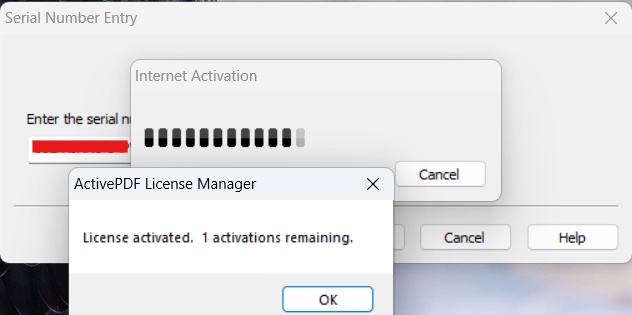
- Some licenses include a limited number of activations and may be installed on only that number of servers. When one of these licenses is applied, the installer connects to the ActivePDF licensing server to verify whether any activations remain. If an activation is available, the license is activated and the number of remaining activations is displayed. If no activations are available, the installer will notify you.
- If your server does not have internet access please see the section below named "Manual Activation".
- Some licenses include a limited number of activations and may be installed on only that number of servers. When one of these licenses is applied, the installer connects to the ActivePDF licensing server to verify whether any activations remain. If an activation is available, the license is activated and the number of remaining activations is displayed. If no activations are available, the installer will notify you.
ActivePDF License Manager
The ActivePDF License Manager is installed on your server as part of the product installation process. By default, a shortcut is created on the desktop for easy access. The License Manager allows you to view installed licenses, add new licenses, and remove existing licenses.
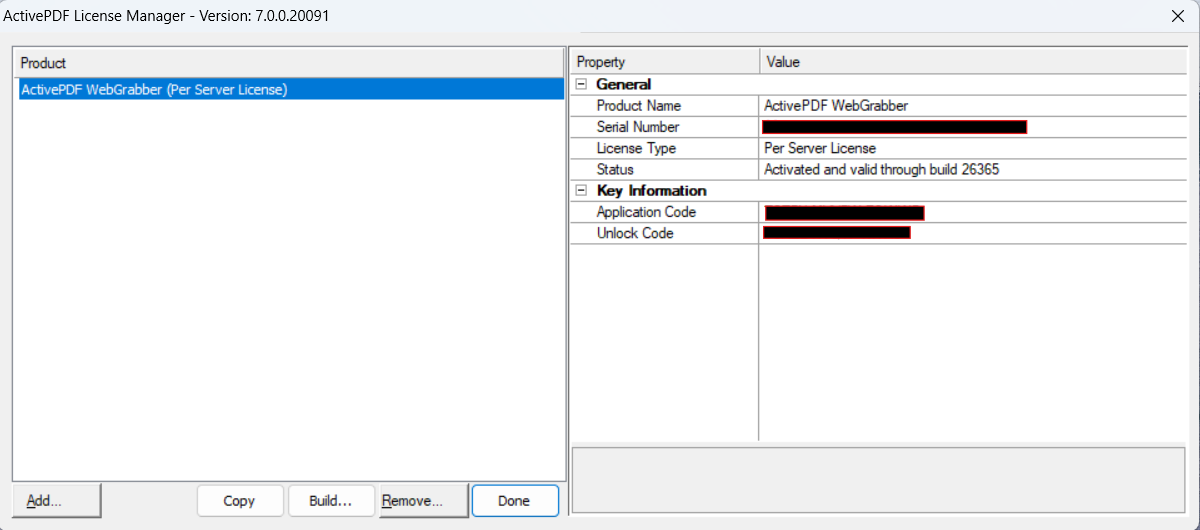
- OEM or Royalty free license information is not stored in the license manger.
- Further information on the license manager can be found here: License Manager Documentation
- If the license manager was removed or not installed for some reason you can download it here: License Manager APLclient download
Manual Activation
See instructions on manually activating your license here: